AI tools for teachers

Turn your lesson topic into an illustrated story

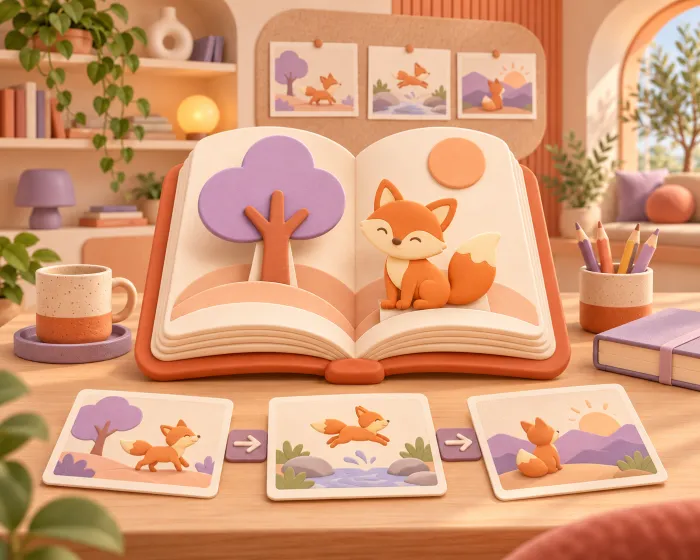
Choose the topic and level, and Madlen writes a storybook illustrated scene by scene.

  • From 2 to 8 scenes
  • Voice narration
  • Comprehension questions included

A real example made with Madlen

Year 5 Science

Science • Year 5

The Big Water Test

English · 2 scenes · Storybook

Liam and Maya want to find out how shapes move through water. They plan a fair test and control their variables carefully.

  1. Scene 1 of 2

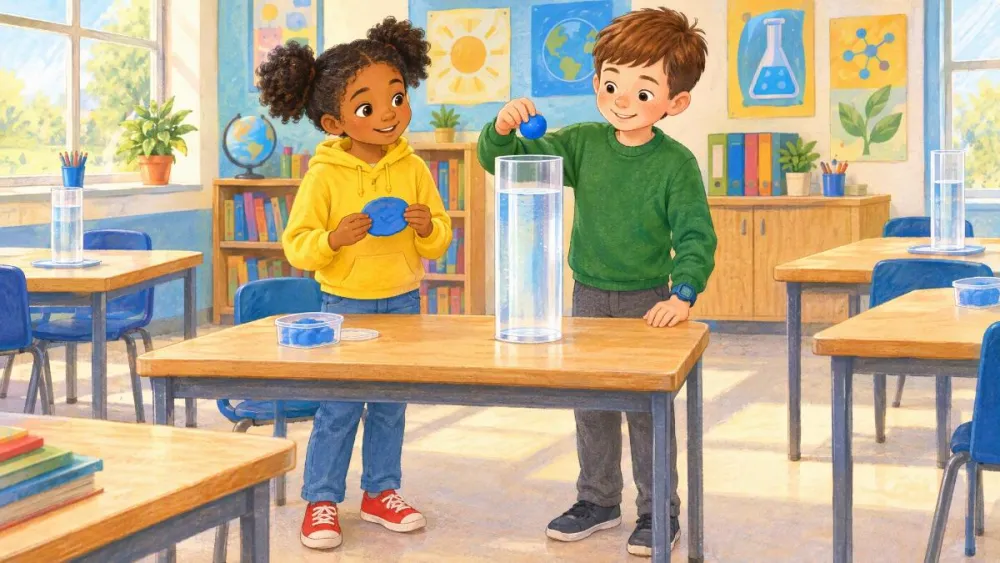
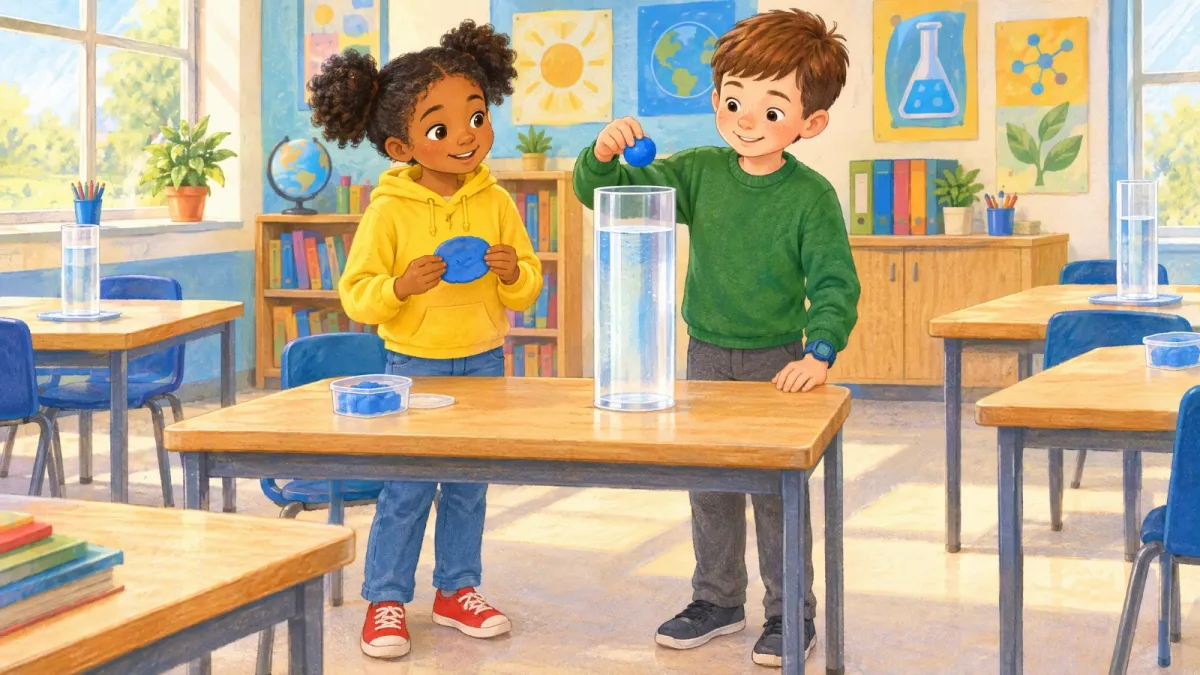
    Maya and Liam wanted to learn about water resistance. They made two different shapes from the same mass of blue modelling clay. Liam held a round ball, and Maya held a flat disc. 'We must do a fair test,' said Maya. 'We have to drop them from the same height into the water.'

  2. Scene 2 of 2

    Liam counted down, and they dropped the shapes at the same time. The round ball fell quickly to the bottom, but the flat shape moved down slowly. The flat disc had a larger surface area, so it met more water resistance. Liam timed the drop with his blue watch, and Maya wrote down the seconds. They smiled because their test was fair.


What you can do

A picture for every scene

The story is split into the number of scenes you choose, and each scene comes with its own illustration. Pick storybook, watercolor, cartoon or realistic, and redraw any scene you want to change.

A reading lesson, ready to go

Scene vocabulary, the main idea and discussion questions come with the story. You can also add a comprehension check with multiple choice, gap fill and true or false questions.

Narration in seven languages

Add voice narration and listen to the story together in class. Write it in English, Turkish, German, French, Italian, Spanish or Russian, and set the CEFR level from Pre A1 to C2 for a foreign language.

How it works

  1. 1

    Choose grade, subject and topic

    Start from a learning objective, a topic list, your own file or a short prompt.

  2. 2

    Shape the story

    Set the number of scenes and the illustration style, and pick the vocabulary, main idea and questions to include.

  3. 3

    Use it in class

    Add narration, open it on the smart board, download it as a Word file or assign it to your students.

Frequently asked questions

How do I make an illustrated story with AI?

In Madlen you choose the grade, subject and topic, then the number of scenes and an illustration style. The AI writes the story, illustrates every scene and adds the vocabulary, main idea and questions you selected. The story is ready in a few minutes.

Which subjects can I use illustrated stories for?

You create each story for a subject and topic, so it works across the curriculum. Teachers use it for levelled reading in language classes, to tell a history or science topic as a story, and for reading around special days.

Can I set the reading level?

Yes. The story is written for the grade you choose. For stories in a foreign language you also pick a CEFR level from Pre A1 to C2.

How do I share the story with my students?

Open it on the smart board, download it as a Word document or assign it to your students. Students read it scene by scene in the reader view and answer the comprehension questions if you added them.

How do I get started with Madlen?

Sign in at teacher.madlen.io with your Google account to start on Madlen’s free plan. Schools that want institutional features can begin with a 14-day pilot.

Try Madlen with your own class

Create a free account and start with the tools you need today.

Start free